

Electronic Signatures in Google Docs: Options and Recordkeeping
By Anirudh Menon, Viaclause editor
Use Google Docs eSignature or a simple visible mark. See actual source preparation, the eligible-plan limit, and a checklist for retaining signing evidence.
An electronic signature in Google Docs can be a visible mark placed in a document or a signature collected through Google's native eSignature workflow. Choose based on the record you need: a mark alone is different from a managed signing request and its completion evidence. Our fictional preparation test reached a native signature field, then encountered an eligible-plan requirement before sending. No agreement was sent or signed.
This guide covers the available routes, documented request steps, that actual account limitation, and an original filing checklist. For the broader question of intent, identity and retained evidence, start with our electronic-signature guide. Product observations below are from October 6, 2026; plan access can change.
Choose a visible mark or a signing workflow
| What you need | Route to investigate | Record to check before relying on it |
|---|---|---|
| A visible mark in a working document | A drawing or image, clearly identified as such | The surrounding evidence of intent and who placed the mark |
| A request with defined signers and completion tracking | Native Google eSignature, if the account has access | The actual completed file and its accompanying evidence |
| Requirements beyond the native workflow | Compare dedicated signing services against a written specification | Identity checks, export format, retention and administrative controls |
A signature-shaped image should not be described as a completed native request. Equally, an eligible subscription does not establish that a particular person had authority to bind a company. Treat access, completion and legal sufficiency as separate questions. Our electronic-signature software evaluation helps turn those questions into a purchasing checklist.
What Google's native eSignature documentation says
In Docs, open Tools and eSignature; Google's product page also describes starting from a PDF in Drive. Check availability first. Google's access guide lists Workspace Individual and specified Business, Enterprise and Education subscriptions, with administrator enablement for listed organizational plans. Being able to edit a Doc does not by itself demonstrate access to sending.
Google's current detailed instructions describe this sequence:
- Place signature, initials, name, text or signing-date fields and assign signers.
- Request signatures from an owned or editable source; review the title, recipient addresses and message.
- A request creates a locked signing PDF. The original Doc remains editable and is not shared through that request.
- For changed content, cancel and issue a new request. Editing the source alone does not revise the pending PDF.
- Signers complete required fields and the agreement step. Multiple signers must all finish.
- The completed PDF includes a final audit page with events, names, email addresses and timestamps. Retain that file.
The documented limits are ten signers and two hundred fields. Copies normally use the source folder, with permission-related exceptions to My Drive; signer copies go to their My Drive. The request email identifies the signing address. Those are documented behaviors, not completion steps we independently tested.
Our actual preparation test: a field, then an access limit
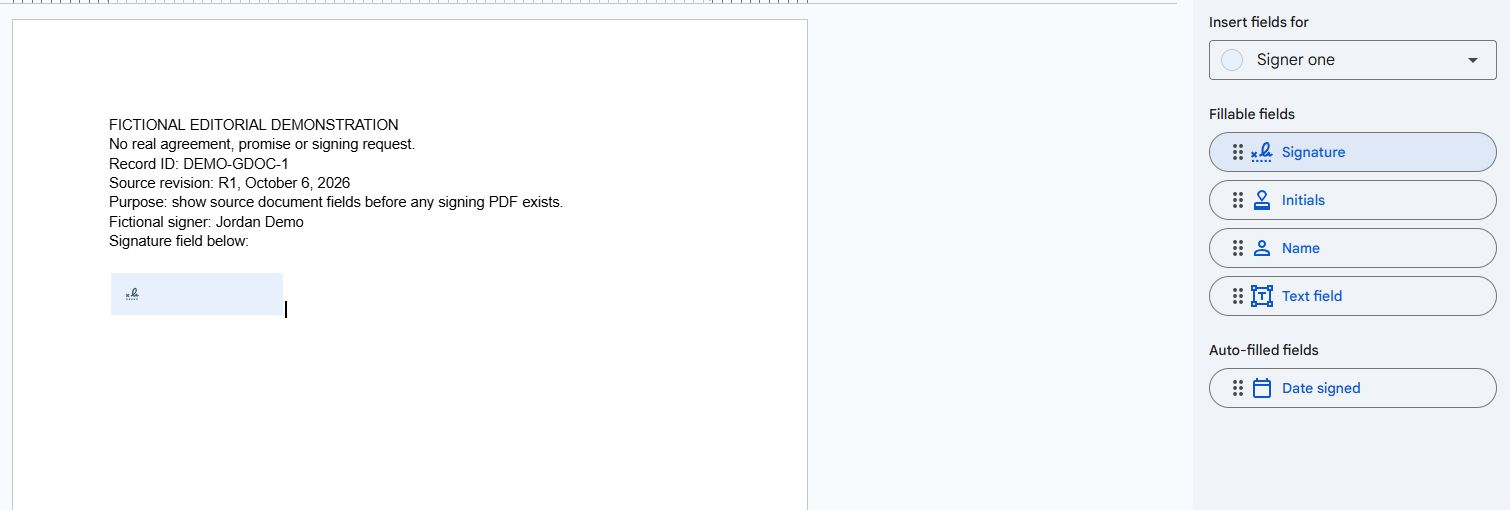
We created a private Google Doc named as a fictional editorial demonstration. Its body explicitly said there was no real agreement, promise or signing request. It contained record ID DEMO-GDOC-1, revision R1, and the fictional name Jordan Demo. We opened the eSignature panel and inserted a native signature placeholder. This showed field preparation in the account we used; it did not show a signature by Jordan Demo.
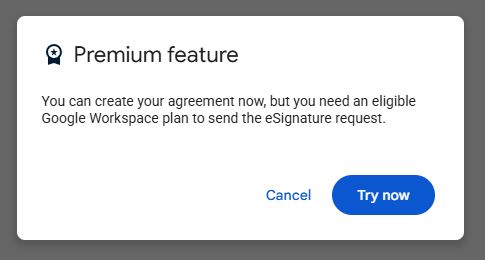
A product prompt said the account could prepare an agreement but needed an eligible Google Workspace plan to send it. We stopped there. We did not buy a plan, alter administrator settings, send a request, accept a signing agreement or produce a completed PDF. There was no recipient email assignment demonstrating a real signer.
This is a useful boundary for troubleshooting. If a team says its template is ready, ask whether that means fields have been placed, a request exists, or everyone has finished. In this test, only the first statement was supported. A screenshot of a placeholder cannot stand in for evidence of the later stages.
If you only need a drawing or signature image
For a visible mark, Google's drawing instructions describe Insert, Drawing, New and a Scribble option in the line tool. They also describe adding images. That is a document-editing route, separate from the native request workflow. We did not independently test a drawn mark in this run.
Before using this route for an agreement, write down the intended use. A manager placing their own approval mark in an internal worksheet presents different recordkeeping questions from a customer being asked to accept contractual terms. Keep the surrounding correspondence and exact version where relevant. Do not copy someone else's mark into a document and treat that as their assent.
A September 2022 discussion of free signing options reflects older user needs, not a reliable source for today's native access or add-on prices. Evaluate current permissions and export behavior before installing an add-on. A historic claim that a service is free does not establish today's price.
A filing method that keeps the source and signing record distinct
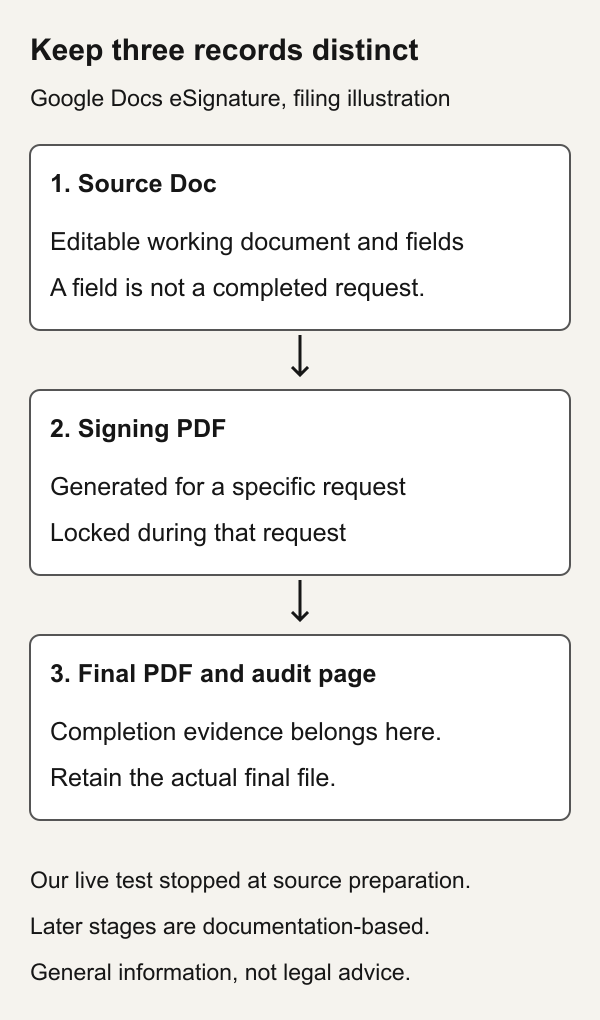
The following is a fictional administrative example, not output from Google's signing service. Assume a team prepares a consulting agreement for Jordan Demo and a fictional supplier. It wants the next reviewer to locate the agreed document without opening every similarly named file. Use a stable record ID and describe the state explicitly:
Fictional filing example
Record ID: DEMO-GDOC-1
Source: DEMO-GDOC-1-source-R1
State: prepared, no signing request sent
Assigned reviewer: contracts coordinator
Next action: verify account access and intended recipients

Later-stage naming proposal, not generated test files:
DEMO-GDOC-1-request-A-pending
DEMO-GDOC-1-request-A-final
Evidence note: retain actual audit page with final file
Superseded request: identify explicitly if replaced
Do not create a filename ending in “final” merely because the text is ready. Reserve it for the record whose completion you have checked. If a request is replaced, keep a note connecting the superseded request to its replacement, subject to the team's retention policy. The name is an aid to retrieval, not proof of completion or authenticity.
Store the retained agreement and evidence in a controlled contract repository. A shared folder with several indistinguishable copies can defeat otherwise careful signing work. Before requesting signatures on a revised document, use a contract comparison to inspect the substantive changes rather than relying on the filename.
Copyable handoff checklist with a completed example
SIGNING HANDOFF
Agreement ID:
Source revision and owner:
State: preparation / pending / completed / superseded
Intended signer names and addresses:
Authority check and unresolved questions:
Actual request identifier or record reference:
Final-file location:
Audit or supporting evidence location:
Reviewer, date and next action:

COMPLETED FICTIONAL PREPARATION ENTRY
Agreement ID: DEMO-GDOC-1
Source revision and owner: R1, editorial test owner
State: preparation
Intended signer: Jordan Demo, fictional; no email assigned
Authority: not assessed; no real transaction
Request reference: none sent
Final-file location: none produced
Evidence: source-field and access-limit screenshots
Reviewer: Viaclause editor, October 6, 2026
Next action: establish eligibility before a real request
For a real record, replace every fictional entry with an observed fact or an explicit unresolved item. The completed example is deliberately a preparation entry. It should not be copied into a completion register as if the agreement had been signed.
| Observed problem | Check next | Evidence to preserve |
|---|---|---|
| Field exists but sending is unavailable | Eligible account and, where applicable, administrator access | The exact account prompt and review date |
| A different source revision was approved | Which version the actual request represents | Comparison and request replacement note |
| Someone says signing is complete | The retained file and completion evidence, not just a chat message | The reviewed final record and reviewer note |
| The record cannot be found | Owner, folder permissions and recorded file location | A resolved location in the agreement register |
Jurisdiction: the product does not decide enforceability
In the United States, E-SIGN says qualifying records and signatures cannot be denied legal effect solely because they are electronic. It does not replace other substantive requirements or require everyone to agree to electronic methods. Consumer disclosures, exceptions and retention conditions can matter. An electronic signature involves intent to sign, not merely a picture resembling a signature. These points are grounded in 15 USC sections 7001, 7003 and 7006, official 2024 Code edition.
Check applicable state law, document-specific formalities, consent and the signer's authority before a consequential transaction. For a transaction governed outside the United States, review that jurisdiction's requirements instead of assuming a product feature provides the required signature category. Our digital versus electronic signature comparison shows why appearance alone does not establish cryptographic integrity or certificate trust.
Google product instructions establish a workflow description, not a legal opinion about your particular agreement.
FAQs
Can I add an electronic signature in Google Docs?
Yes, there are visible-mark and native-request routes. Decide which evidence your use requires before choosing. Our live test demonstrated native field preparation only.
Is creating a signature field the same as signing?
No. The placeholder in our fictional Doc was uncompleted and no request had been sent. Record that state accurately.
Is Google Docs signing free for every account?
Our account encountered an eligible-plan prompt. Use the current access guide linked above for your subscription; do not infer universal access from the presence of a field panel.
What if I need to correct the agreement?
First identify the state and version of the actual signing record. Follow the documented replacement procedure above and preserve the connection between versions.
What should I keep after signing?
Keep the actual completion record, its supporting evidence and a reliable location in your register. Do not substitute the editable source or our fictional filenames for that evidence.
Does an image prove who agreed?
The image alone does not answer identity, intent, authority or version questions. Evaluate the surrounding evidence and applicable law. For file-specific alternatives, see our PDF signing and verification guide.
Banner: AI-generated fictional illustration.
Sources
- Google Docs Help: sending signature requests and signing documents
- Google Workspace: eSignature product overview
- Google Docs Help: request access to eSignature
- Google Docs Help: creating and inserting drawings
- Historical September 2022 discussion, not current plan evidence
- Govinfo: official 2024 E-SIGN Code provisions