

How to Sign a PDF and Keep a Verifiable Copy
By Anirudh Menon, Viaclause editor
Choose a signing request, visible mark or certificate workflow. Follow a tested fictional PDF example, check the saved file and retain the right evidence.
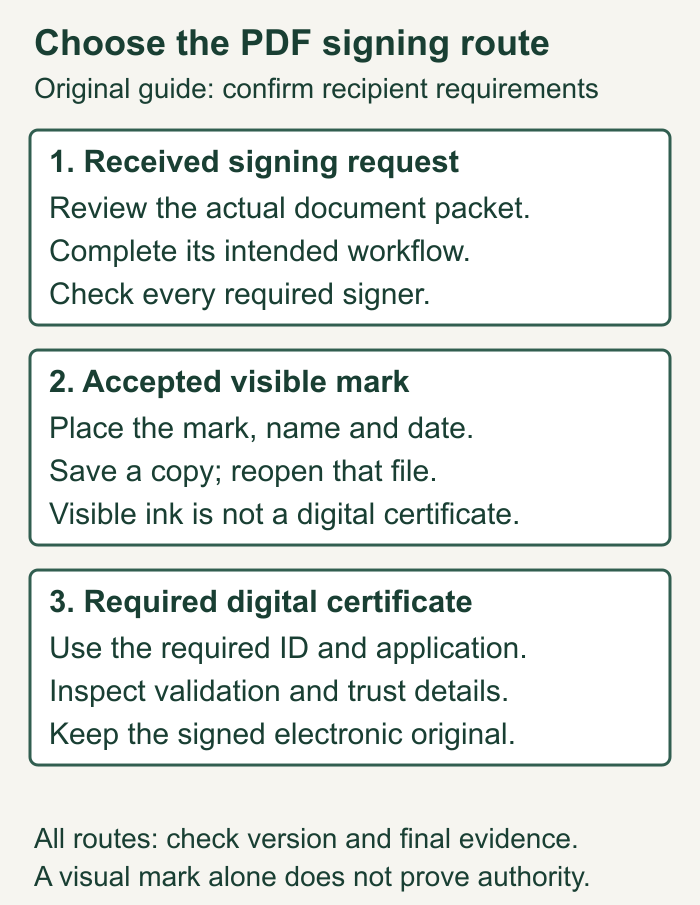
To sign a PDF, first check what the recipient requires. For your own copy, a PDF reader can place a typed, drawn or image signature on the page; save a separate file and reopen it to check the result. If someone sent a signing request, complete that request instead. If a certificate is required, a visible mark alone will not complete that technical requirement.
A signature-looking page and a verified signing record answer different questions. This guide shows the practical steps, a dated fictional test and the checks to perform before sending the file. For the broader legal and evidence questions, start with the electronic signature guide.
Choose the right signing route
| Your task | Use this route | Keep this result |
|---|---|---|
| A sender supplied a signing link | Review and complete the request in the intended signing service | The completed document and available completion evidence |
| You need to mark your own PDF copy | Use a reader's visible signature tool, or an accepted ink workflow | A separately saved PDF, checked after reopening |
| The recipient requires certificate-based signing | Use the specified digital ID and compatible signing application | The original signed electronic file and validation details |
| The recipient requires a paper original | Confirm the paper process before substituting an electronic mark | The required original and the agreed record copy |
Ask the recipient a concrete question: “Do you accept a visible signature in a PDF, require completion through your signing link, or require a particular certificate?” Resolve that before uploading or drawing anything. A filing portal, regulated form or employer process may have its own requirements.
Sign your own copy in Adobe Acrobat Reader
Adobe's desktop instructions support typing, drawing or importing an image. Open the PDF, choose the Sign icon or Fill & Sign, complete the fields, then add a signature or initials. Choose the input method, apply it and place it in the intended location. Check placement before saving. Adobe notes that selecting Save Signature while signed in stores it in Document Cloud for reuse. These are Adobe's documented Reader steps, checked October 6, 2026; Reader was not hands-on tested for this article.
Before using a signature image, check that it is yours to use and that the recipient accepts this process. An image file should not circulate as a reusable signing asset among colleagues. Signing on behalf of a company also requires the appropriate authority; possessing the file does not supply that authority.
Save the output under a clear new filename. Close that copy and open it from its saved location. Inspect the last page, attachments and every required field, including dates and initials. Do not rely on the application's current unsaved view as evidence of what the recipient will receive.
Sign a PDF on a Mac with Preview
Apple's Preview instructions describe capturing a signature with a trackpad, the Mac's camera or a compatible nearby iPhone or iPad. Open the PDF in Preview, show the Markup toolbar and select Sign. Create or select your own signature, place it on the intended line and resize it. For a camera capture, Apple describes holding a signed white sheet level with the displayed guide. Nearby-device capture has Continuity requirements.
Preview also lets you enter form text; a text box is an alternative when direct typing is unavailable. Complete the date and any capacity field as well as the signature. Save a distinct final copy, then reopen that file and inspect the whole document. These are documented routes, not an additional hands-on test. A captured handwriting image does not establish certificate validation. Apple notes that saved signatures can be available on other Macs using iCloud Drive; consider the actual account and device access before retaining a reusable mark.
Sign a PDF on iPhone or Android
For iPhone's Preview app, the Apple iOS 26 guide says to open the PDF, select Form Filling, enter the required information and use Add for a signature or text form box. Choose the file itself rather than a screenshot of one page. Controls can differ by app and operating-system version. After completing your copy, save it, reopen the saved PDF and inspect all pages before sharing. We did not test this mobile route.
Adobe's Acrobat mobile instructions describe opening the form, choosing Fill & Sign, and using Signature then Add signature. Draw, supply an image or capture a signature, finish the input, place it and adjust its position or size before saving. The documentation warns that the saved signature is permanent in the flattened output. Preserve the unsigned source and check the placement first. This is Adobe's documented process, not a tested Android or iPhone result.
The separate Adobe mobile form guide distinguishes interactive Acroforms from Fill & Sign forms and excludes XFA forms. Editing an Acroform's field structure requires the desktop application. A form that works on a computer therefore may need a different approved mobile route. If the required fields or signing controls do not appear, obtain the sender's supported file or use the prescribed application. Do not remove document restrictions to force the workflow.
Use a browser without uploading to a signing service
A browser's local PDF viewer and an online signing website are different workflows. In the first, open the file in the browser's PDF viewer. In the second, the service receives the upload. Check which process you actually selected before working with confidential material. A local-looking tab is not, by itself, a record of every extension or organizational configuration.
Firefox: typed, drawn or image annotations
Mozilla's PDF viewer guide documents Add signature, Add New Signature, and Type, Draw or Image. Choose the input and place it, then download the modified PDF. Its signature annotations do not supply authentication or verification. Mozilla's broad legal warning is not a jurisdiction-specific determination of your transaction; apply the separate legal and recipient checks in this guide. Inspect the saved output rather than assuming the viewer has created a certificate-signed file.
Chrome: draw and download the changed copy
Google's computer PDF instructions describe Draw, Pen, a chosen size and color, and a freehand signature. Finish the drawing, then use Download and choose With your changes where offered. Choosing Without your changes produces a different output. If the drawing control is missing in your installed browser or this file, use a supported application or the sender's route. We did not test Chrome signing for this article.
Edge's observed route is documented in the local example below. For each browser, complete any name, date and capacity fields separately, save a new PDF, then reopen it. A zoomed view of the initials is not enough to confirm that the final attachment contains every page and required field.
PDF editing applications: check the exported document
If you use an editor such as LibreOffice Draw rather than a signing request, keep the source and check what the PDF export actually contains. LibreOffice's PDF export documentation describes export settings and page-range choices. Review the exported page count and appearance, including fields and attachments. This guide does not claim a hands-on Draw import test, preserved certificate signature or unchanged layout. Prefer the specified signing route when the transaction depends on those features.
Troubleshoot before sending the file
| Problem | Check first | Safer next action |
|---|---|---|
| Nothing happens when you click a blank line | It may be a page image or noninteractive field | Use the approved text or signature annotation tool; ask for an accessible form if needed |
| Signature is missing after saving | Saved filename, output location and changed-copy option | Reopen the actual output; repeat the permitted process on the unsigned source |
| Fields or fonts differ in another viewer | Supported form type and application | Use the sender's supported viewer and review the saved file; Mozilla documents rendering limitations |
| The PDF is protected or signing controls are disabled | Sender's permitted workflow and file restrictions | Request a signable file or intended signing link |
| The signature is misplaced or the date is wrong | Whether the copy is still a draft, saved or completed | Correct the draft before signing; preserve a completed copy and request the agreed correction process |
| You received only your own signed copy | Other required signers and completion status | Obtain the actual completed package before labeling it fully executed |
| Recipient requires a certificate | Specified digital ID, trust and application requirements | Use that process and preserve the original signed electronic file |
Original review aid. File-specific problems are not proof that a signature is legally invalid or that another application will fix them. Record the observed failure and escalate the unresolved requirement. Mozilla's viewer guide specifically identifies possible font, color and display problems; Adobe's mobile guide supplies the XFA limitation.
Complete a received signing request
For Acrobat Sign requests, Adobe documents an email-link route and a Reader agreement route. In Reader, open the waiting agreement from Home and All Agreements, complete its fields and follow the signing controls. In the browser, use the received link and finish the prompted process. See Adobe's received-agreement instructions.
Confirm the sender through a channel you already trust if the request is unexpected. Check the actual document, parties, attachments and signing capacity before completing it. If the text is wrong, ask for a corrected request; do not sign a locally altered download and assume the service now contains that version.
After completing your step, check whether other signers remain. Your action may precede final completion. Retain the service's completed document and whatever completion record the actual workflow provides. Do not label a partially signed download “fully executed” without checking the other required actions.
Online upload is a separate choice from local PDF work. Adobe's online signing page describes uploading a document and signing in to complete the process. Docusign's PDF signing page describes an account-based route. Neither online service was used in our test. Review your organization's upload rules before sharing confidential material with any service.
A tested local PDF example in Microsoft Edge
On October 6, 2026, we used Windows Microsoft Edge version 154.0.4258.53 to open an original two-page practice PDF. The document expressly says it is fictional, is not a contract and creates no transaction. Page two contains name and date fields and a box for fictional initials. No real person's signature or confidential document was used.
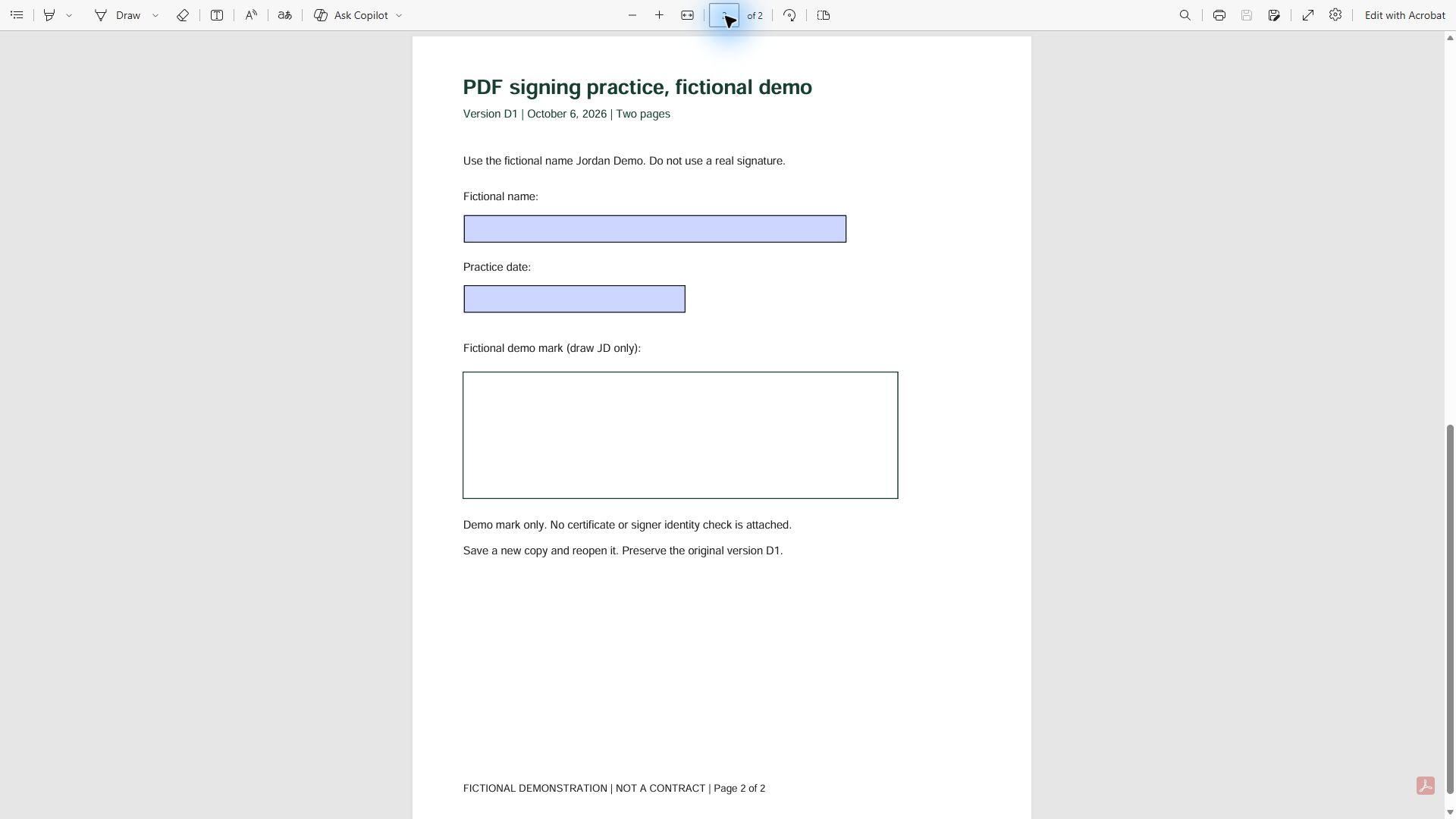
The observed steps were:
- Open the local PDF in Edge and inspect the title and two-page count.
- Navigate to page two using the page selector.
- Click the name field and enter “Jordan Demo.” Click the date field and enter “2026-10-06.”
- Select Draw and place fictional JD initials inside the marked box. This adds ink; it does not create a certificate signature.
- Choose Save as and give the output a separate filename,
pdf-signing-demo-marked.pdf. - Open the saved output independently and inspect its content.
The saved copy was independently reopened with a PDF parser and rendered with Poppler. It retained two pages, both field values and the visible blue initials. Its structure contained ink annotations and no PDF signature field. The original file still had empty name and date fields. The image below is the independently rendered saved page, not a second Edge screenshot.
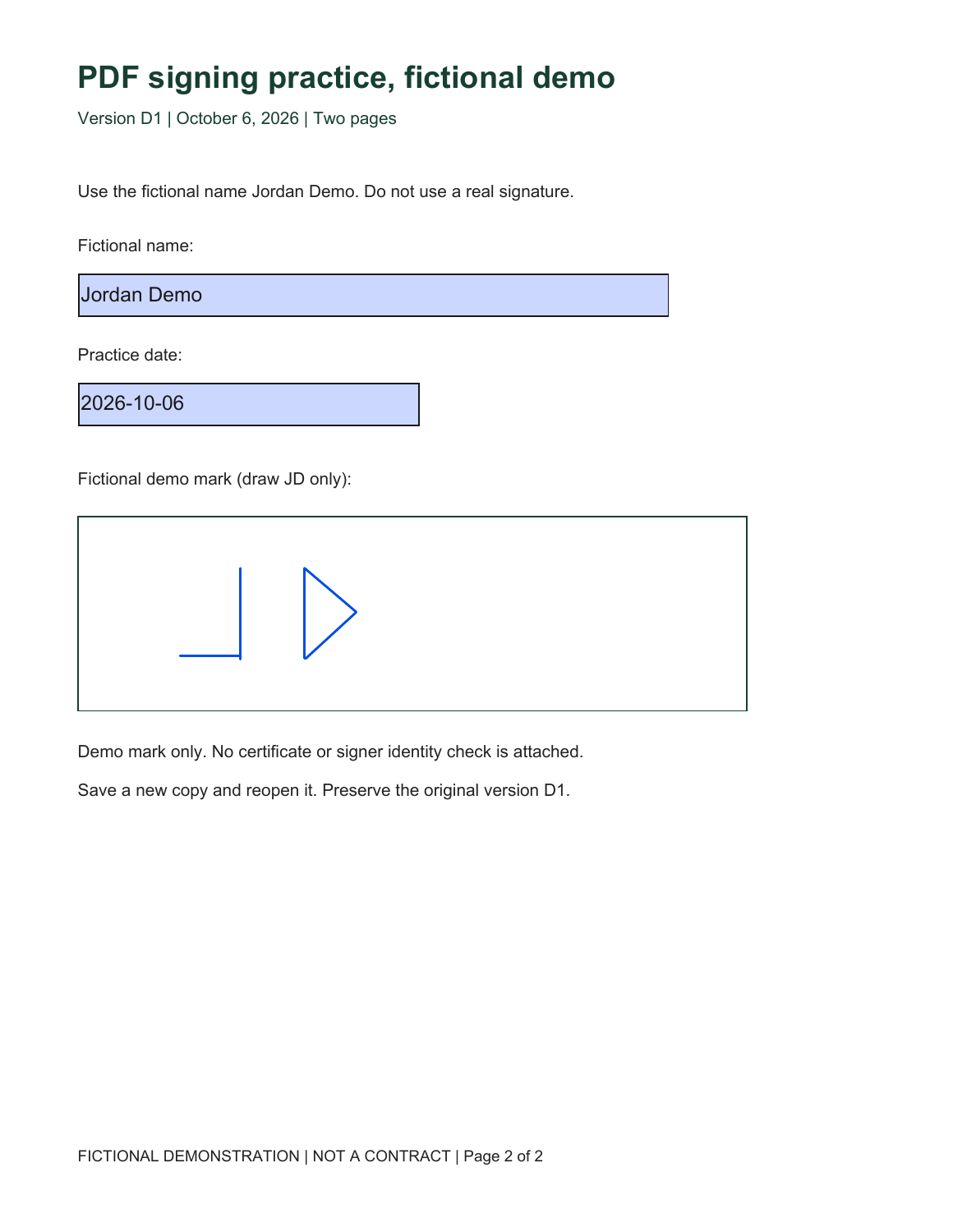
Limits: this was one local form and an ink-mark exercise. We did not test a signing service, certificate, mobile device, recipient acceptance or legal enforceability. Reopening in Edge was not completed. The check of the saved output used an independent parser and renderer. Microsoft's PDF reader documentation describes local PDFs, form filling and inking; it also notes unsupported XFA forms. A different file or organization configuration can behave differently.
Check a certificate signature separately
A typed name or drawn mark is not the same technical operation as signing with a digital certificate. If the recipient requires a digital ID, ask which identity, issuer, application and trust requirements apply. Do not substitute an image because it looks similar on the page.
For an existing certificate-signed PDF in Acrobat, open the Signatures panel, choose its validation action and inspect the status. Review Signature Properties and the signer's certificate. Adobe distinguishes a local-clock signing time from a trusted timestamp, and also describes unverified or expired timestamp messages. Escalate unresolved trust questions instead of treating every green-looking mark as sufficient. These are Adobe's certificate-validation instructions; no certificate workflow was tested here.
Record what was checked and what remained uncertain. “I can see a signature” is a visual observation. “The application reports this certificate signature as valid under these settings” is a different observation. Neither, by itself, settles signatory authority or the full legal effect of the transaction.
Preserve the signed version when changes are needed
Keep the received signed electronic file before making a comparison or preparing a corrected draft. Acrobat provides a Signatures-panel action to compare the signed version with the current version. Use it to investigate changes, following Adobe's signed-version comparison instructions. Do not assume all later changes have the same validation consequence.
For contract-text changes, preserve the original and use a clearly identified revision workflow. The blackline versus redline guide helps distinguish the comparison from the operative document. A newly prepared PDF should not silently replace the copy that was actually signed.
Printing, scanning or taking a screenshot can supply a readable copy, but those copies should not stand in for checking a certificate in its original electronic PDF. Keep the original file available for validation. If the recipient requires a handwritten original, use the agreed wet-signature process and record where that original is held.
US legal scope: appearance is not the entire signing question
For covered US interstate or foreign-commerce transactions, E-SIGN section 7001 prevents denial of effect solely because a record or signature is electronic. Section 7006 includes intent to sign in its definition. The Act preserves other requirements, generally does not force acceptance of electronic records, and sets conditions for certain required consumer disclosures. Section 7003 lists exceptions. Retention provisions address accurate, accessible reproduction. Check the actual transaction and applicable state or specialist rules; this is not a conclusion that every marked PDF is enforceable. See the statutory texts of 15 USC 7001, 7003 and 7006, reproduced by LII.
This guide is general information. Court filings, wills, notices and other specialist documents need their own process review. The practical application check here does not resolve those requirements.
Copyable final-file record
Use this record for the file you actually inspected. Leave a question open if you did not perform the check. A completed practice example follows; it is evidence of a test, not a contract-execution certificate.
PDF completion record
Document title and version:
Original location and page count:
Required signing route and recipient confirmation:
Signer name and capacity:
Fields and attachments checked:
Application and version:
Saved output filename and location:
Reopened from saved location using:
Visible result:
Certificate validation, if required:
Remaining signers or open requirements:
Completion evidence retained:
Record owner and next action:
Completed fictional practice record, October 6, 2026
Document: PDF signing practice, version D1, two pages
Original: pdf-signing-demo-original.pdf, empty name/date
Required route: local practice only, no recipient or transaction
Fictional name: Jordan Demo; practice date: 2026-10-06
Application: Windows Edge 154.0.4258.53
Action: form fields filled, fictional JD ink drawn on page two
Output: pdf-signing-demo-marked.pdf, separately saved
Reopening check: pypdf parser plus Poppler page rendering
Result: two pages, both values and visible ink present
Certificate check: no PDF signature field; none claimed
Other signers: none, not an execution workflow
Retained evidence: original, marked PDF, before screenshot,
rendered saved page and structural verification record
Open limit: no second Edge reopening or certificate test
Next action: use a recipient-approved process for real documents
For business records, link the final PDF to its governing agreement, signing evidence and related attachments. Store them where the responsible team can retrieve the actual files, following the contract repository checks. When email supplies important context, retain that context using the email evidence packet rather than keeping an isolated attachment.
Checklist before sending
- Correct document title, version, parties and all pages.
- Recipient's required signing route confirmed.
- Signer's identity and signing capacity checked through the appropriate process.
- All required signature, initial, name and date fields completed.
- Attachments and referenced schedules included.
- Output saved separately and reopened from storage.
- Fields and visible marks inspected in that saved output.
- Certificate validation reviewed when required; unresolved issues recorded.
- Completion status and remaining signers checked.
- Original, final file and available evidence retained in a retrievable location.
Frequently asked questions
How do I add a handwritten signature to a PDF?
Use the reader's drawing or signature-image option if the recipient accepts it. Place the mark, save the result and inspect the saved file. Our Edge test used fictional ink; it did not establish who a real signer is.
Can I sign a PDF without uploading it?
Our local Edge example opened and marked a local file without uploading it to a signing service. That does not meet every recipient's requirements. Use the received workflow when completion through that service is required.
Why will a PDF not let me digitally sign?
First identify whether the missing operation is ordinary form filling, a visible mark or certificate signing. Record the error and ask the sender which application and signing method the file requires. A tool called Draw does not supply a digital ID. Do not remove document protections to improvise a different process.
Is pasting a signature image the same as digitally signing?
It can make a visible mark, but it does not perform certificate signing merely by appearing on the page. Resolve the required workflow, then keep evidence of the actual signing action and final version.
What should I check after saving?
Open the saved file itself, check every page and field, and confirm the mark is present. If certificates are involved, also check their validation details. For a signing request, confirm the service's completion state.
Can I edit a signed PDF?
Preserve the signed file first. Investigate the application's permitted changes and validation result, and label any revised document clearly. Where new agreement is required, complete the appropriate correction or amendment process instead of silently replacing the signed version.
Can I hand sign a printed PDF and scan it?
Confirm whether the recipient accepts the scan or requires the paper original. Retain the required original and a readable record copy. A scan is not a certificate-validation test of the electronic file.
How do I sign a PDF on a Mac without Acrobat?
Use Preview's documented Sign control to capture or select your own signature and place it. Complete the other fields, save a distinct copy and reopen it. Confirm that the recipient accepts this visible-mark process; it does not itself create a certificate signature.
Can I sign a PDF on my phone?
Apple documents PDF form signing in iPhone Preview; Adobe documents Fill & Sign on mobile. Use the actual PDF, check compatibility and reopen the saved output. A mobile app's signature control does not establish your authority or complete another person's pending signature.
Can I sign a PDF without an internet connection?
A suitable local workflow may let you work on a downloaded file. Adobe's mobile instructions describe offline form completion followed by account synchronization when online. A signing request may have separate completion requirements. Verify the saved file and the actual service status before claiming completion.
Why did my signature disappear when I downloaded the PDF?
Check whether you downloaded the changed version, saved to a different location or reopened the original. Chrome documents separate download choices. The practical fix is to inspect the exact output and complete the permitted process again if needed, while preserving any already completed record.
What should I do if a PDF is locked?
Use the permitted workflow and request a supported signing copy if restrictions prevent signing. Confirm the intended application or signing link with the sender. Keep a completed file intact and preserve its original electronic format; the ability to view a locked file does not give permission to remove its restrictions.
Sources
- Adobe Acrobat Reader: sign PDFs and received agreements, checked October 6, 2026.
- Microsoft: PDF reader in Edge, features and limitations.
- Adobe: validate digital signatures and inspect certificate details.
- Adobe: compare signed and current document versions.
- E-SIGN section 7001: recognition, preserved requirements, consumer conditions and retention, statutory text hosted by LII.
- E-SIGN section 7003: specific exceptions, statutory text hosted by LII.
- E-SIGN section 7006: definitions including signing intent, statutory text hosted by LII.
- Adobe online PDF signing: documented upload route.
- Docusign: documented PDF signing route.
- Original Viaclause local fictional PDF test, October 6, 2026: native Edge interactions, separately saved PDF, independent structural reopening and rendered page. Test materials and verification record retained in the editorial evidence folder.
- Apple: Preview PDF forms, signature capture and saved-signature handling, inspected October6,2026.
- Apple iOS26 guide: form filling and PDF signing in Preview, inspected October6,2026.
- Adobe: mobile form filling, signature placement, offline work and save limitations, inspected October6,2026.
- Adobe: mobile form types, account requirements and unsupported XFA forms, inspected October6,2026.
- Mozilla: PDF signature annotations, saving and display limitations, inspected October6,2026.
- Google: computer PDF drawing and changed-copy download, inspected October6,2026.
- LibreOffice: PDF export settings and range options, inspected October6,2026.
Prepared by the Viaclause editorial team. Product instructions and legal sources checked October 6, 2026. The test and its limitations are disclosed above. The banner is an AI-generated fictional illustration; the test screenshot and saved-page rendering are original evidence. No legal enforceability, traffic or ranking result is claimed.